United Airlines Alterations Program
Last updated: December 13, 2025
Getting Started:
- Logging In: Click here and use your United Airlines SSO (Single Sign-On) credentials to log into the Worksmith platform.
Credits & Payments:
-
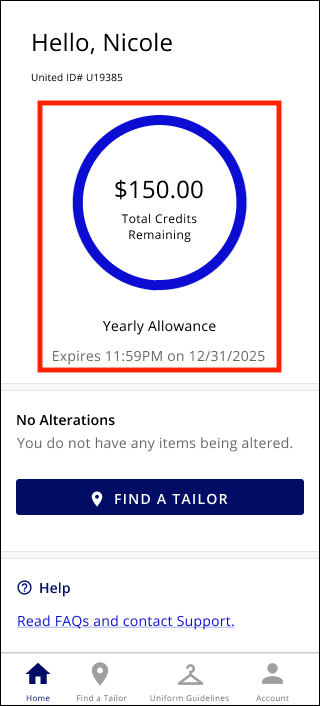
Checking Your Credit Balance: Upon logging in, your credit balance will be displayed.
-
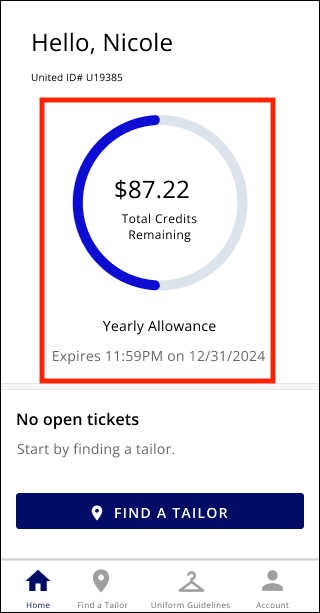
Using Credits: Once your ticket is complete the platform will automatically deduct from your credit balance based on the agreed pricing.
-
Insufficient Credits / additional alterations: Your personal credit card will only be used in two situations:
- Your credit balance is insufficient to cover the alterations needed for your uniform
How to Use the Alterations Program:
Finding a Tailor:
-
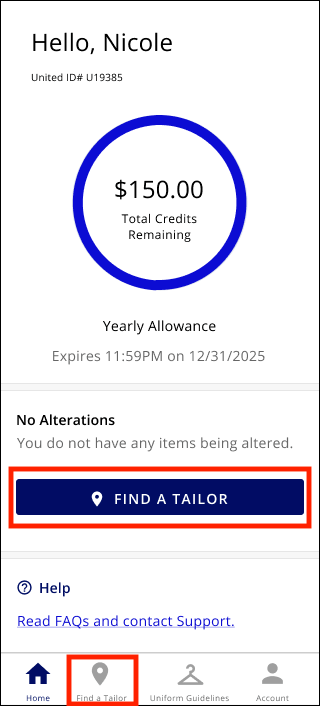
Click the “Find a tailor” button or go to the Find a Tailor tab
-
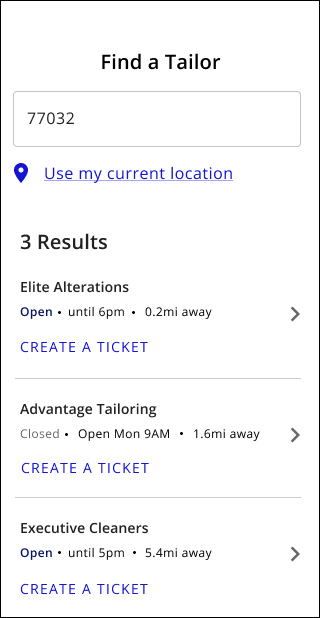
Enter your home or work zip code and you’ll see a list of tailors in the area.
- If your search does not return a tailor you can:
- Broaden your search (try next to your hub airport).
- Contact Worksmith support and the team will find you a tailor.
- Note that the alterations program is currently only available in the contiguous United States.
Requesting Alterations:
-
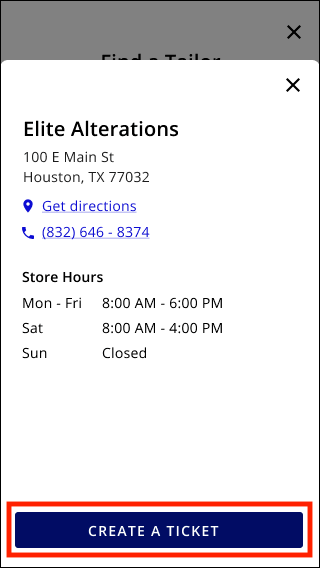
Choose a tailor from the list that’s convenient for you.
-
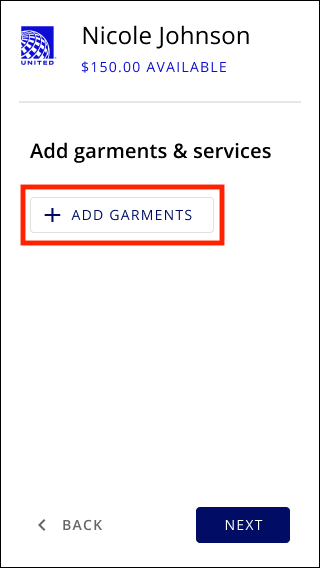
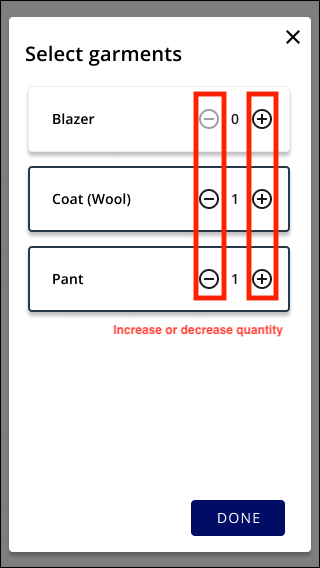
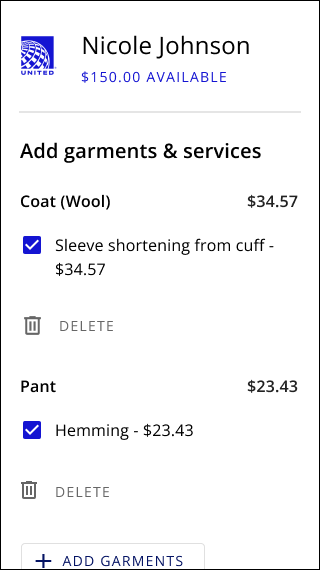
Enter the garments and alterations you need.
-
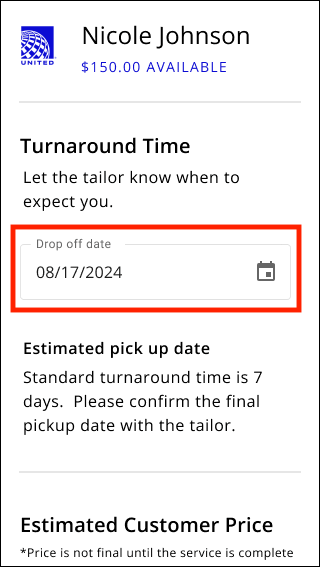
Add the date you intend to go to the tailor and drop off your garments.
-
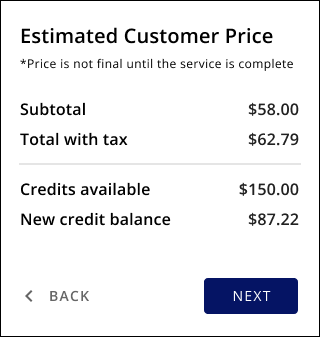
You will receive a quote based on the standardized pricing agreed upon between United Airlines and Worksmith.
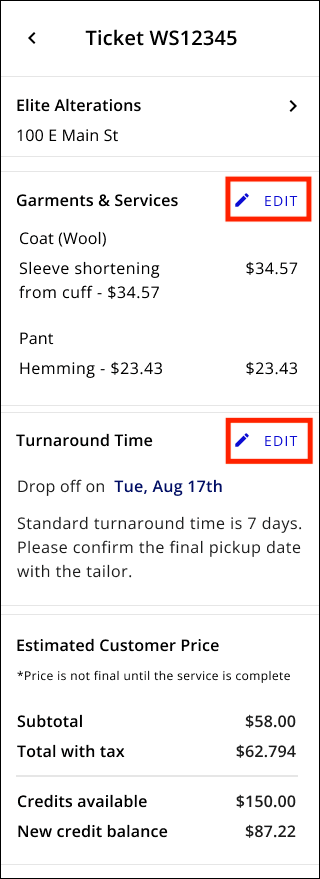
- If the vendor determines additional alterations are needed, they can edit your ticket while you’re on site.
-
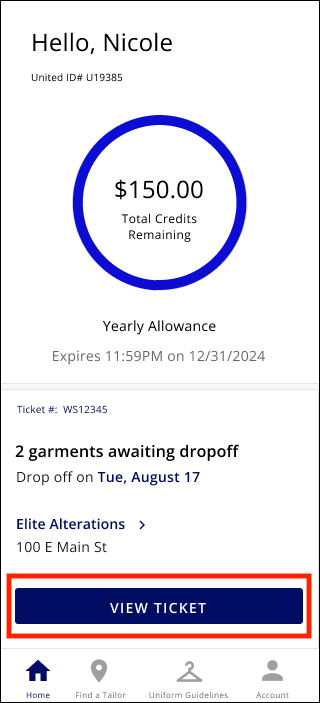
You can always view your ticket within your portal to update your drop off date, see the total cost, credits that will be applied, and if any amount will be charged to your credit card.
Completed Tickets & Balance History:
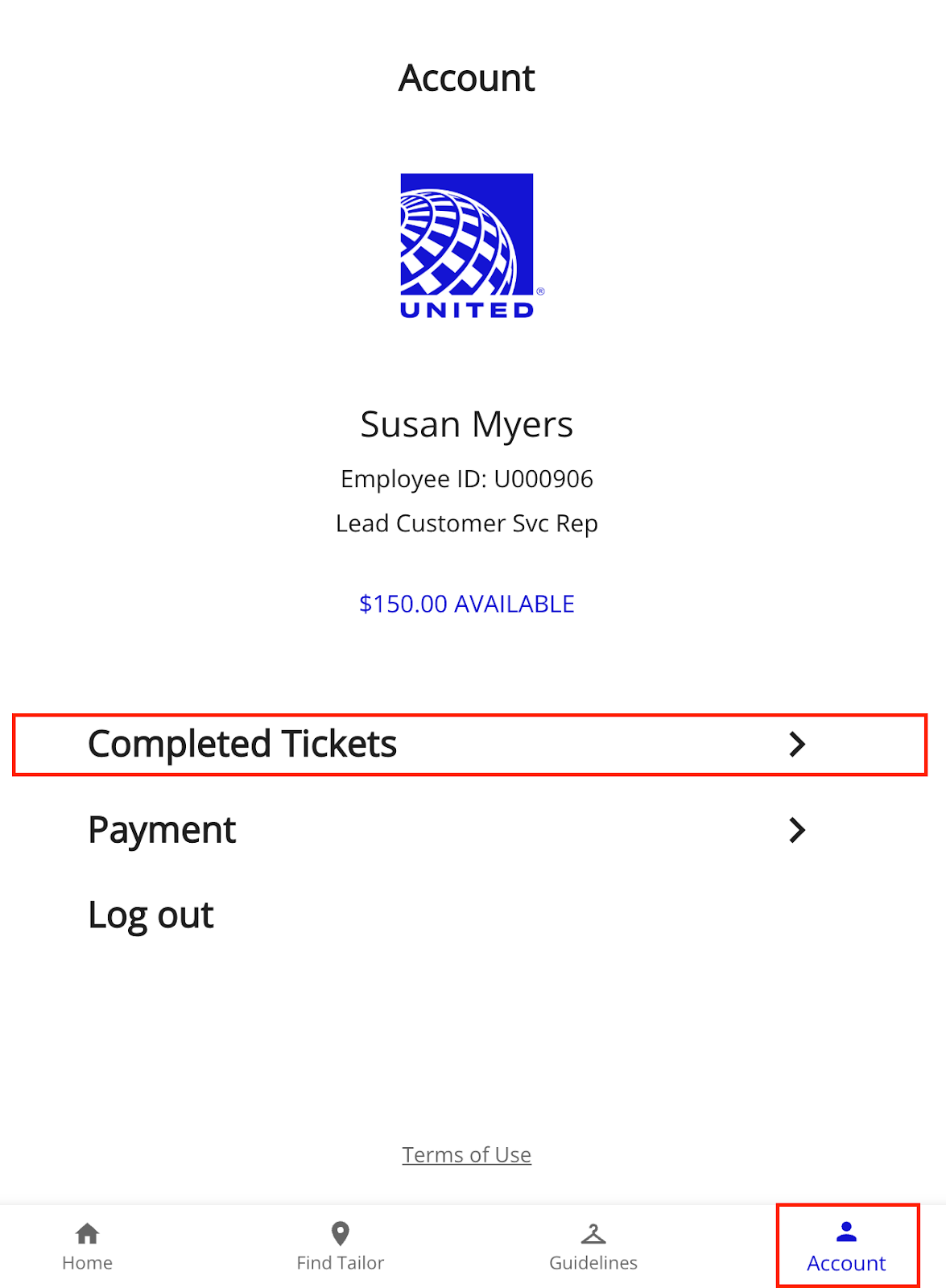
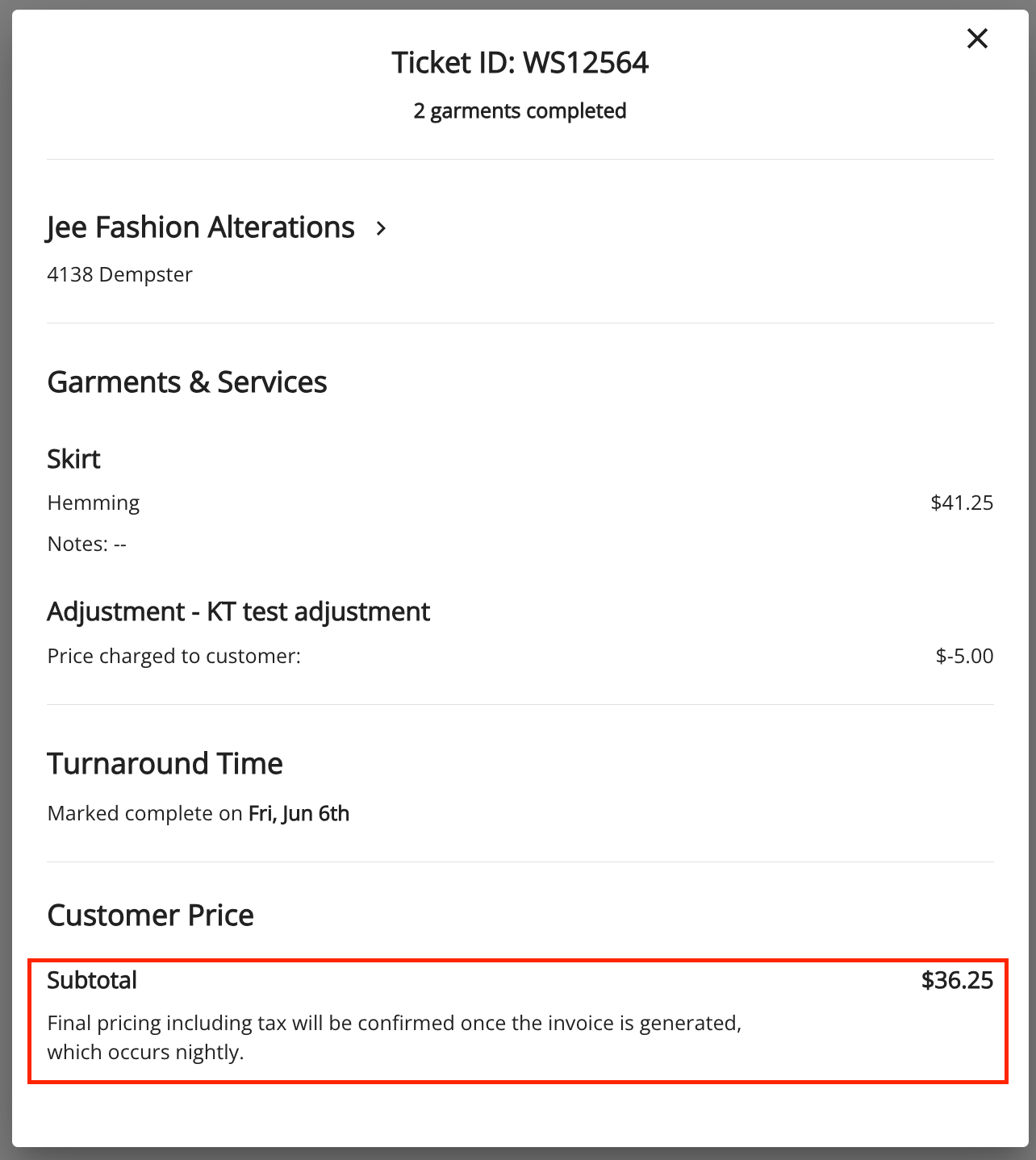
- Once your ticket has been invoiced, you will receive a copy of the receipt via email. You can view all of your past tickets and service history by going to Account > Completed Tickets.
-
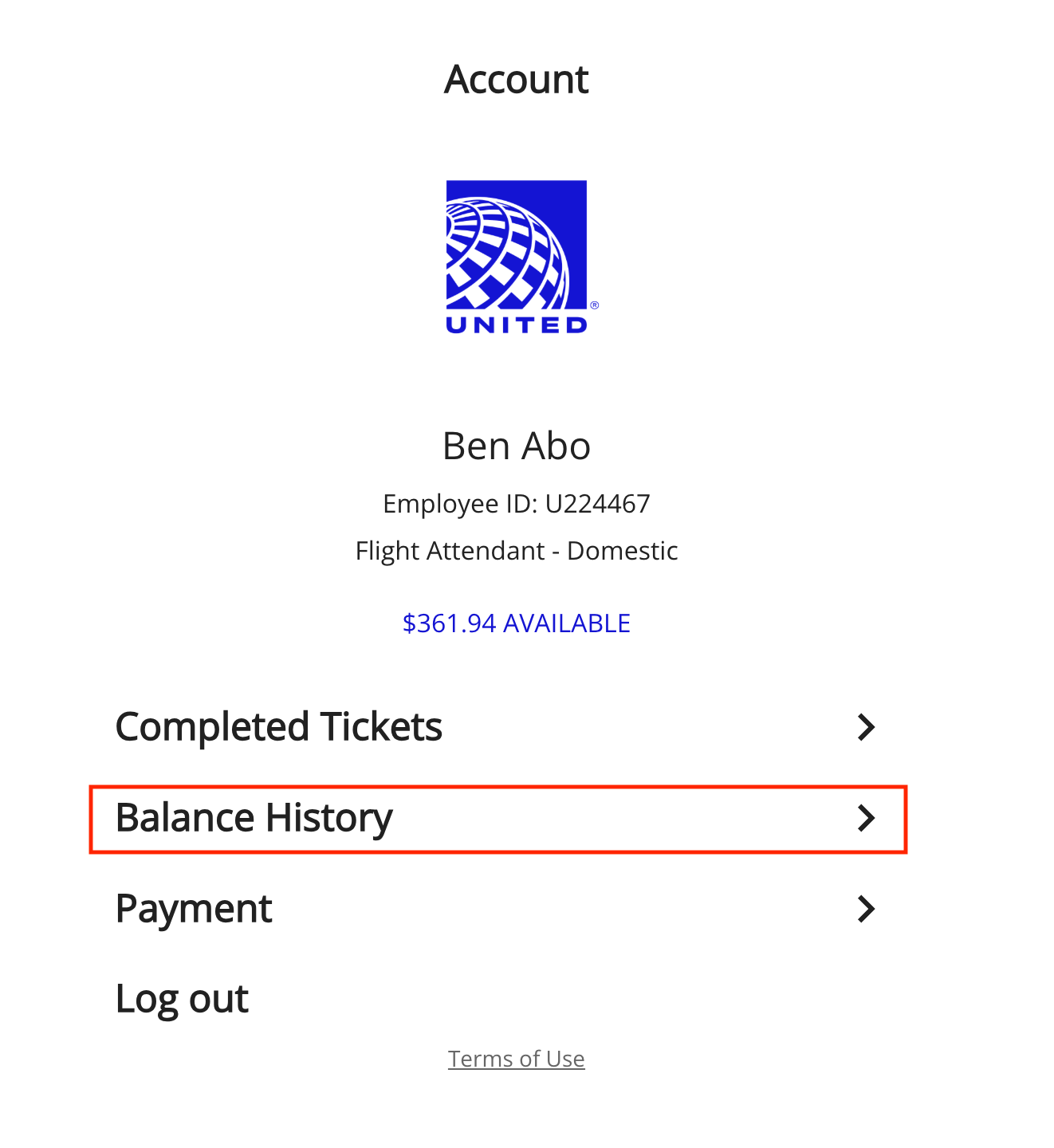
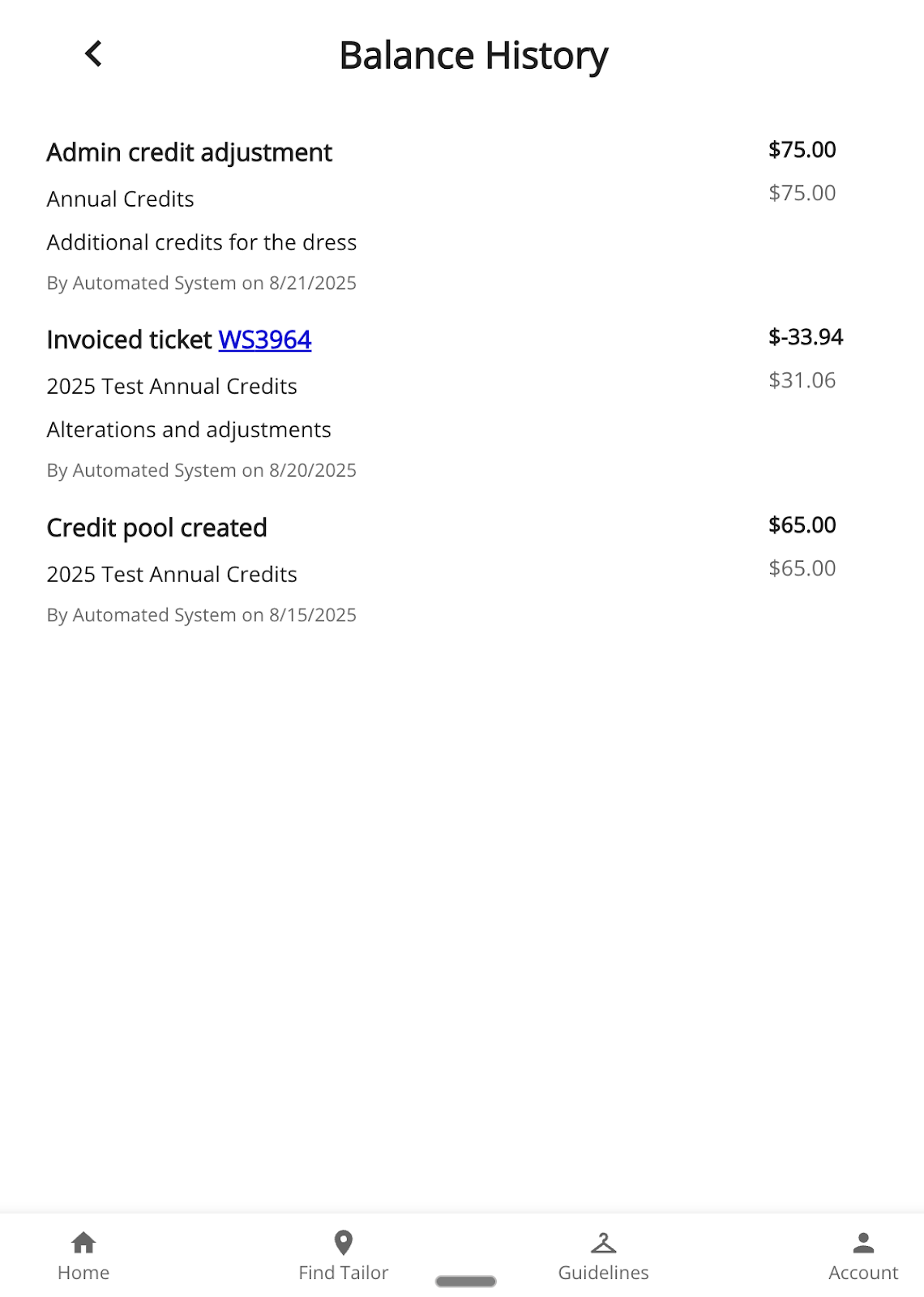
Additional balance activity such as expense reports, credit renewals and credit expirations can be viewed by going to Account > Balance History
Support and Assistance:
Worksmith provides Support for any questions or issues you may encounter during the alteration process. Monday - Friday, 9AM-6PM central standard time at Support Ticket.
- Technical Assistance: If you experience any problems with logging in, using the platform, or accessing your credits, you can contact Worksmith’s support team directly via their support center within the platform.
- Uniform Issues: For concerns specific to the quality of alterations or issues with your uniform, Worksmith’s support can assist with resolving these matters promptly.
Reimbursement for Damaged Garments:
If a garment becomes unwearable due to a tailoring error:
Step 1 — Vendor Remediation
Return the item to the vendor and request a complimentary correction.
If the vendor cannot resolve the issue, proceed to Step 2.
Step 2 — Credit & Replacement Request
Worksmith will:
-
Issue a credit for the alteration cost, and
- Submit a replacement garment request to Headquarters (HQ).
What the employee must provide
Please submit a support ticket with:
- Photos of the damaged area (for record-keeping/assessment)
- Garment type and size
- A brief description of what happened and why the item is unwearable
HQ Approval & Points
Once HQ approves, points will be added to the employee’s account to purchase a replacement garment.
Handling Unusable Garments
Before discarding an unusable uniform, remove identifying features (e.g., logos, buttons, braids).
For security reasons, no uniforms may be sold or given away without explicit United approval.
If the garment is still wearable (fit issue only)
Items that are wearable but no longer fit should be brought to your station for the Uniform Loaner Program.
Please coordinate with your uniform coordinator or supervisor for drop-off locations.
No Coverage:
If there are no tailors within 20 miles of your location, try searching your home airport ZIP code. If you still have no options, you may use an out-of-network tailor and submit an expense in Concur for reimbursement up to $150.
To be reimbursed, include:
-
Proof of no local options:
Attach a Worksmith screenshot showing “0 results” within a 20-mile radius of your ZIP code or add a comment in Concur explaining why Worksmith could not be used. -
Proof of service:
Attach an itemized receipt. If an itemized receipt is not available, describe the alterations performed in the receipt or in the Concur comments.Requests for Extra Credits / Refusing to Pay / Uniform Quality Feedback:
For requests for additional credits, refusal to pay additional charges, or quality feedback on Brooks Brothers uniforms, please route the inquiry to the United Help Hub so a United representative can respond directly.
Submit via: Submit a Uniform Program Inquiry-Employee Service Center (Help Hub)
Exchanges (Brooks Brothers):
If your uniform doesn’t fit or needs a different size, please contact Brooks Brothers Customer Service:
- Phone: U.S. 855-416-4463 | International 1-650-456-5680
- Email: unitedsupport@brooksbrothers.com
- Live Chat: Log in to your Brooks Brothers ordering portal to chat
- Follow Brooks Brothers’ instructions for returns/exchanges.
Credit Card Charged by Tailor:
Do not provide your personal credit card to tailors—Worksmith processes all payments.
If a vendor does charge your card:
- Request a refund from the vendor.
- If the vendor cannot refund, submit an expense in Concur with the receipt and brief explanation.